Android app
Native Android 10+ client with universal Share target, server history, per-item deletion and Quick Settings controls.
Start with the Windows app: no separate server is required. Exchange text, photos and files with Android and iPhone, then add Docker or Python only for an always-on setup.
Lighter Windows background sync, automatic retries, reliable file groups and Unicode text. Server 1.0.5 keeps existing iPhone URLs compatible. Android remains beta 10.
Download the client for each device. The Android APK, Windows builds and two ready-made iPhone Shortcuts are direct downloads. The release includes the two main Python scripts; Docker files and complete source remain in the repository.
Native Android 10+ client with universal Share target, server history, per-item deletion and Quick Settings controls.
Recommended. Installs Clipboard Bridge for the current Windows user without administrator privileges.
Run the complete Client and Server modes directly, without installation or administrator privileges.
Load Clipboard sends the current text, photo or file from the iPhone to Clipboard Bridge.
Download Clipboard receives the latest text, photo or file stored in Clipboard Bridge.
Auto-sync on Windows: this applies to both the installer and portable versions. Windows may prevent Clipboard Bridge from detecting clipboard changes made by applications running as administrator. If auto-sync does not work, start Clipboard Bridge with Run as administrator.
Windows security notice: version 2.0.8 is currently unsigned and Windows 11 Smart App Control can block it. Trusted Authenticode signing is being prepared. A self-signed certificate would not make a public download trusted. See the code signing policy.
Optional authentication: token and accounts are not required. If used in iPhone or Android links, token, username and password are visible in plain text in the URL. HTTP does not encrypt them; use a trusted LAN, private VPN or HTTPS reverse proxy.
After adding the Shortcuts on the iPhone, set their complete URLs as shown below. For all Windows, Android, iPhone and server assets, open the complete 2.0.8 release.
The Windows app does not require a separate server. Start with Server mode, then move to the Docker server only when you need an always-on shared service.
Install the app, open its tray icon and choose Server mode under General.
Use the address shown by the app. The tray changes to a green Connected status when it is ready.
Install both Shortcuts and set their complete URLs using the displayed address and port.
Clipboard Bridge detects whether the latest item is text, an image or a file. Windows, Android and iPhone use the same ordered server history for every supported content type.
Move the latest clipboard item without choosing a separate transfer mode.
Keep transfers on your LAN instead of sending clipboard data to a third-party cloud.
Send and receive from the iPhone Share Sheet using two reusable Shortcuts.
Share one or multiple files of any type, browse and delete server history, and use two Quick Settings controls.
Centralized Settings for mode, language, history, automation, accounts, notifications and hotkeys, plus a compact green/red tray status and single-instance protection against duplicate icons. Choose alerts separately for received text, images and files; click a file notification to reveal the document.
Run an always-on clipboard server on a NAS, Raspberry Pi or home server. It accepts Unicode text and every file format through raw, multipart or JSON/Base64 uploads. Stable package: server 1.0.5.
Give each user an isolated history and file space while retaining a shared clipboard.
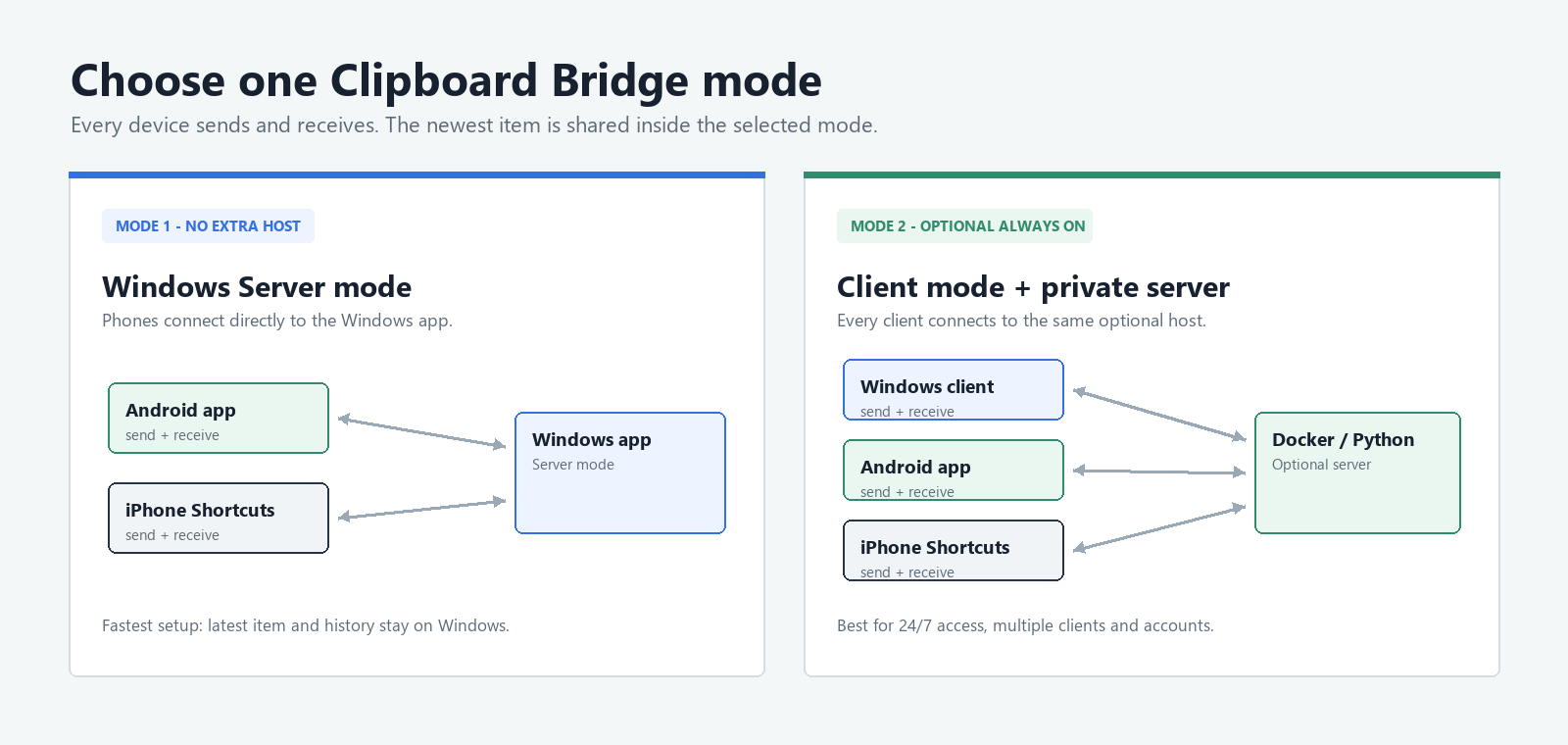
Choose the simplest setup for your network. Both modes work with Windows, the native Android app and iPhone Shortcuts.
The Windows application itself becomes the local clipboard server. Your iPhone connects directly to the PC, with no NAS, Docker container or separate web server.
Windows and iPhone connect to an always-on Flask server. Deploy it with Docker Compose or through ZimaOS, Portainer, Umbrel, Runtipi or Dockge.
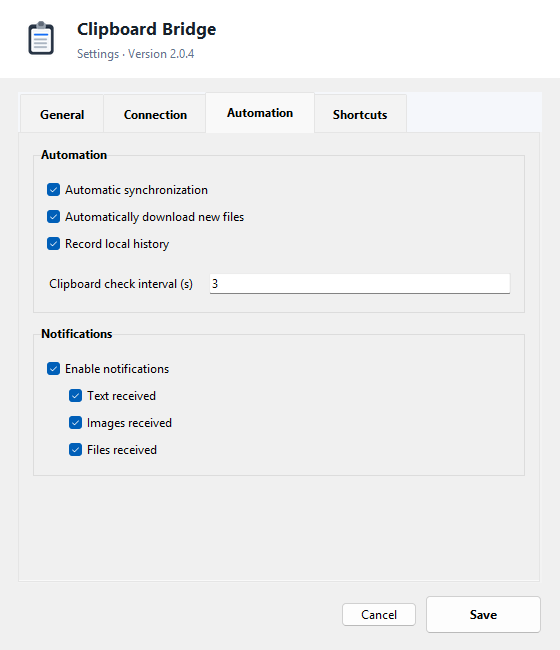
The Windows app keeps server mode, connection status, optional authentication, automatic synchronization and notifications in one place. It works directly with Android and iPhone without requiring a separate host.
Explore the setup guide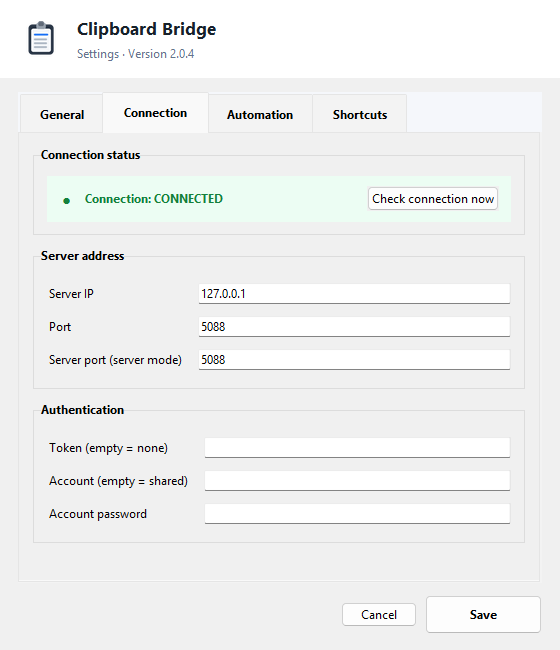
Android uses the Clipboard Bridge app. iPhone and iPad use two prepared Shortcuts. Both connect to the same server and always exchange the most recent item, regardless of its type.
Send the clipboard, receive the latest item, share files from other apps, browse server history and enable incoming notifications.
Download the Android APKLoad Clipboard sends text, photos or several selected files as one group. Download Clipboard restores the latest item automatically. Run them from Shortcuts, the Share Sheet or Control Center.
Configure the iPhone ShortcutsClipboard Bridge still uses only two iOS Shortcuts. The multi-file version automatically detects lists from the Share Sheet, uses /clipboard/bundle for grouped transport, and checks /clipboard/latest/meta before receiving. Text, photos and single files continue to use /clipboard and /clipboard/latest/raw. See the complete guide for the exact actions.
Send the current clipboard or several Share Sheet files. All selected files remain one history item.
Download iPhone send ShortcutReceive the latest text, photo, file or complete file group without choosing its type.
Download iPhone receive ShortcutFor automatic multi-file support, enable Show in Share Sheet for Load Clipboard and follow the grouped-file setup. For faster access, add both Shortcuts to the iPhone Control Center: open Control Center, tap Add (+), choose Add a Control > Shortcut, then select Load Clipboard or Download Clipboard.
Authentication is optional. Account URLs contain user and password in plain text; token URLs expose token in the same way. Do not use these HTTP links on an untrusted or public network.
Start Clipboard Bridge in Windows Server mode or deploy the private server, then configure the two included iOS Shortcuts with the displayed local address.
Yes. Select one or more items, open the Share Sheet and run Load Clipboard. Multiple files are transported automatically and stored as one group; Windows and Android restore every member together.
Yes. Clipboard Bridge appears as a Share target for text and every MIME type, including multiple selected files. Its history is read directly from the selected server account or shared space.
No. Both are optional. When included in a URL they are visible in plain text, so use a trusted LAN, private VPN or HTTPS reverse proxy.
Yes. While the Windows client is running, new PDFs and other files are saved automatically in Downloads\Clipboard Bridge. Click the notification to open File Explorer with the file selected.
No. Clipboard Bridge is open source and transfers content through your own network.
Yes. Select Server mode from the tray menu. The app displays the local IP address and port to use in your iPhone Shortcuts.
Yes. Add a Shortcut control for Load Clipboard and another for Download Clipboard, so both actions are available directly from the pull-down Control Center.
Use Docker Compose or the prepared App Store instructions for ZimaOS, Portainer, Umbrel, Runtipi and Dockge. Current ZimaOS releases accept the generated v2 JSON store source, not a repository ZIP.